Pick your duo
Upload two clear photos. Friends, teammates, pets: if you have permission to use the photos, they can take the stage.
Upload one clear photo per subject, then make an approximately 6-second orange-room performance. Your casting supplies the punchline.
Five takes on the same setup. These clips show the format; the studio currently makes approximately 6-second, 16:9 landscape videos.
A familiar format with a completely unexpected cast.
Upload two clear photos. Friends, teammates, pets: if you have permission to use the photos, they can take the stage.
Our studio turns them into a two-performer video with the orange set, a central mic, and back-and-forth movement.
Download a 16:9 landscape MP4. The best pairing is usually the one nobody saw coming.
Pick the number of videos your publishing calendar needs. Your allowance renews with your billing month.
For creators making the trend their own.
For teams with a steady publishing calendar.
The recognizable setup is simple: two performers, a warm orange room, and one microphone between them. The surprise comes from who you put in the frame. A colleague and the office dog can tell a different joke from two best friends, even when the set stays familiar. The name describes the video trend; the performance is not filmed in a hotel lobby.
This page shows an authorized reference clip so you can see the visual idea before choosing photos. It is a format example, not a sample of every possible result. Your finished take is an approximately 6-second, 16:9 landscape MP4, and details such as gestures, clothing, likeness, and timing can vary between generations. Check the result yourself before publishing it.
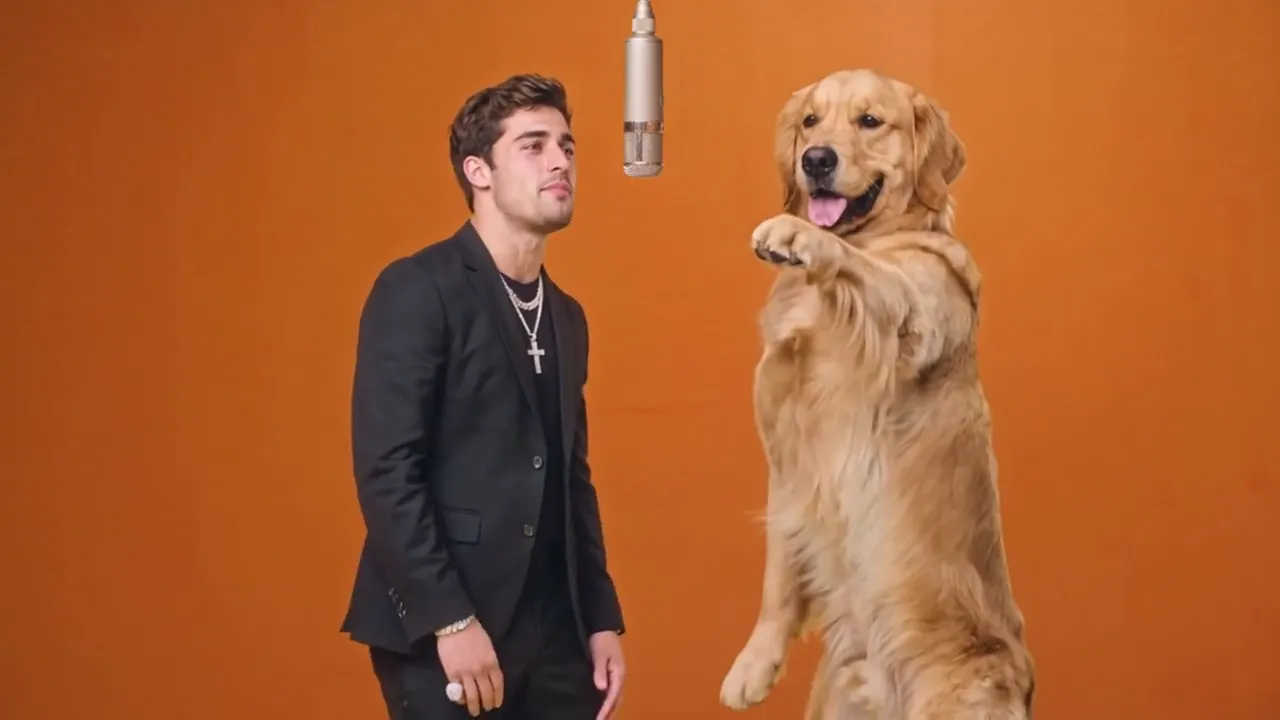
A strong pairing makes sense before anyone hears the audio. Think of two teammates who always argue over the playlist, a founder and their much more photogenic pet, or a brand mascot meeting the person who answers support tickets. Give the pair a one-sentence premise you could use as a caption. If that premise is hard to explain, try another pairing before spending a take.
Choose subjects with visibly different silhouettes, colors, or outfits. That helps viewers recognize who is who in a fast clip. For a marketing post, connect the duo to a real campaign idea rather than dropping two unrelated faces into a trend. The format gets attention; the casting gives people a reason to share it.
The studio accepts two JPG, PNG, or WebP images, each under 10 MB. Put one person or pet in each file. A front-facing or three-quarter view with a clear face gives the generator useful reference points. Visible shoulders or more of the body help when the output calls for movement. Use reasonably even light and avoid heavy filters that erase facial or fur details.
Group photos, cropped faces, sunglasses, motion blur, and busy backgrounds make the subject harder to identify. If one photo is a close-up and the other shows a full body, consider replacing one so both subjects have comparable framing. You do not need matching poses, but each source should make it obvious who is meant to appear in the final video. Keep the originals handy in case you want to try a different take.
Open the creator studio, place a photo in each slot, and confirm that you have the right to animate both subjects. A verified account and paid monthly plan are required before generation can begin. The studio then shows the take as queued, processing, completed, or failed. You can leave the page and return to your recent takes to check its status; there is no need to keep an upload screen open.
When a take completes, download the MP4 from your account. A completed or processing take uses one video from your monthly allowance. If generation fails, that use is restored. A second successful attempt is a new take, so review the reference photos first. Processing time and the exact motion can vary; the status in the studio is more useful than guessing how long a render should take.
The output uses a 16:9 landscape frame. Write a caption that identifies the relationship between your two subjects, then let the moving clip deliver the punchline. A simple setup such as “our designer versus the office dog” gives the audience context without covering the performance with text. For a team campaign, decide who will approve the subjects, caption, and channel before the file is generated.
Preview the downloaded file on the platform where you plan to post it. Feed layouts and interface overlays can hide content near the edges, so keep your own captions and stickers away from faces and the microphone. Check sound, crop, and likeness on a phone as well as a desktop. Generative video is variable, and a memorable pairing still needs a human final review.
If one subject is hard to recognize, start by changing the source image rather than rewriting the joke. Pick a sharper photo with less face obstruction and a clearer outline. If the two performers feel too similar, choose images with more distinct clothing, color, or framing. If movement looks odd, inspect the entire clip before deciding which moments to use; a single still frame does not tell you whether the short video works as a post.
The orange-room reference establishes a direction, but it does not lock every gesture or expression. Do not promise an exact recreation to a client. For campaigns that need precise timing, fixed dialogue, or frame-by-frame approval, plan an editing pass after download. This tool is for getting a shareable duo take quickly, with room for normal creative review.
Creator is $19 per month for five videos. Studio is $39 per month for twelve. There are no free generations. If you are testing a few pairings for your own feed, five takes may be enough. If several people need clips for a weekly publishing calendar, compare the larger allowance with the number of posts you actually plan to make. Both plans use the same two-photo workflow and approximately 6-second landscape export.
The allowance renews with your billing month. Choose based on expected output, not just the number of ideas in a brainstorm. You can review the full plan details before opening the studio. For a step-by-step walkthrough of photo choice, upload, and download, read the video-making guide.
It is a short duo performance in an orange studio with one hanging microphone. Despite the name, the trend is not set in a hotel lobby.
Use one person or pet per photo, with a clear face, even light, and as much of the body visible as possible. Keep both subjects distinct.
No. Video creation requires a monthly subscription. Creator includes five videos per billing month; Studio includes twelve.
Only upload photos you own or have permission to animate. You confirm those rights before starting a video.
No. The clip shows the orange-room format. Your export uses the same landscape frame, while subjects, movements, timing, and small visual details can vary. Review each finished take before publishing.
Processing time varies. Your studio shows each take as queued, processing, completed, or failed, so you can leave and come back to check its status.
A failed take restores its monthly video use. Check your studio history for the status and try clearer reference photos if you start another take.
Both monthly plans include commercial use. Your team still needs permission for the people, pets, and other material shown in the uploaded photos.